Digitizing slides on a Mac is easier when the scanner matches your film formats, image-quality goals, and preferred workflow. The right model can preserve family memories, prepare archival scans, or streamline a larger film collection.
These 10 picks range from high-resolution 35mm scanners with infrared dust removal to versatile units with built-in displays and computer-free operation. Use the guide below to narrow the choices by compatibility, speed, output quality, and convenience.
Best 10 Slide Scanners for Mac Picks for 2026
High-Resolution Choice

- 7200 dpi scanning for 35mm film
- Infrared dust and scratch removal
- Supports Mac OS 10.7–14.x
Best For: Detailed 35mm scanning on a Mac
Easy-Viewing Pick
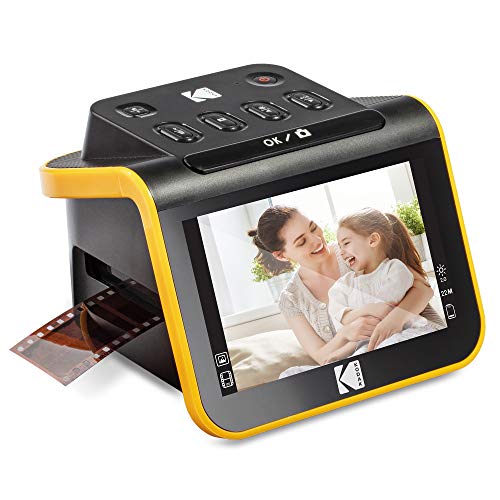
- 5-inch LCD with gallery mode
- Handles several film and slide formats
- Saves directly to SD or SDHC cards
Best For: Simple family photo digitizing
Color-Calibration Pick
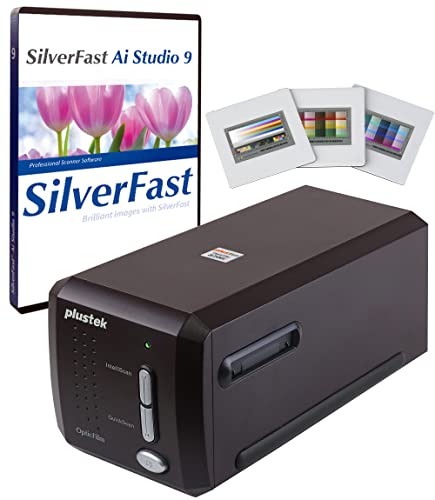
- 7200 dpi 35mm scanning
- Includes IT8 calibration target
- SilverFast 9 Ai Studio included
Best For: Advanced 35mm archival work
Fast Standalone Option

- Scans multiple film and slide formats
- 24MP JPEG output
- No computer or driver installation required
Best For: Fast mixed-format home scanning
Best Standalone Pick
HP Film & Slide Scanner HPFS500
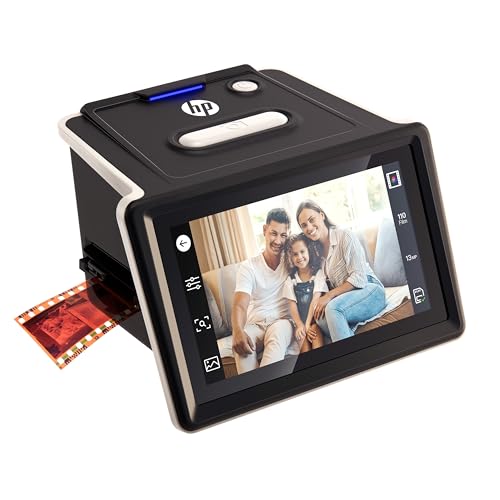
- Standalone scanning with SD-card storage
- Supports 135, 126, and 110 film formats
- 5-inch touchscreen and 13MP sensor
Best For: Mac users digitizing mixed film collections without a computer
Best for Everyday Use

- Up to 7200 dpi scanning
- Batch scans four slides or six film frames
- Supports multiple 35mm film types
Best For: High-detail 35mm scanning with third-party editing workflows
Best Easy-Use Value
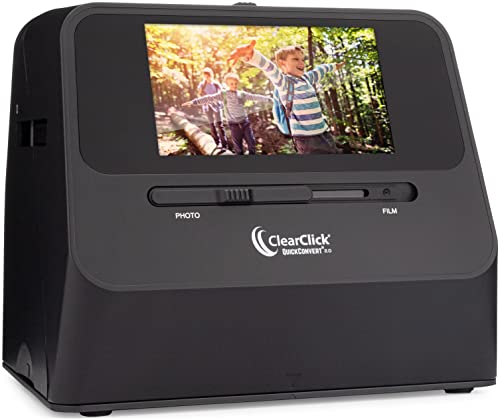
- Scans without a computer or drivers
- Supports 35mm, 110, and 126 media
- Rechargeable battery and 5-inch preview LCD
Best For: Quick, simple digitization of mixed media collections
Best with Extra Features

- 7200 DPI and 48-bit output
- SilverFast SE Plus included
- Mac OS 10.8.x–13.x support
Best For: Detailed 35mm slide and negative archiving
Simple Viewing Pick
DigitConvert Slide & Negative Scanner

- One-touch JPEG scanning
- 5-inch LCD and Gallery Mode
- Includes multiple film adapters
Best For: Casual family scanning and easy sharing
Advanced Restoration Pick

- 7200 DPI and up to 3.91 Dmax
- Infrared dust and scratch removal
- SilverFast SE Plus 9 included
Best For: Serious 35mm restoration and archiving
High-Resolution Choice – Plustek OpticFilm 8200i SE
The Plustek OpticFilm 8200i SE is a strong option among slide scanners for Mac if you want detailed 35mm scans and built-in help with dust and scratch removal. It supports Mac OS 10.7 through 14.x and includes SilverFast SE Plus 9 for more advanced image processing.
Best For: Mac users digitizing 35mm negatives and mounted slides who prioritize resolution and restoration features.
Pros:
- 7200 dpi resolution and 48-bit color output support detailed scans.
- Built-in infrared detection helps remove dust and scratches without manual retouching.
- Includes SilverFast SE Plus 9 and Plustek QuickScan software.
Cons:
- Designed for 35mm film and slides rather than multiple film formats.
- Requires a computer and USB connection for scanning.
The 8200i SE is a focused, higher-resolution scanner for users willing to trade convenience for more control over 35mm image quality. Its Mac compatibility and infrared channel make it particularly suitable for careful archival work.
Easy-Viewing Pick – KODAK Slide N Scan
The KODAK Slide N Scan is a convenient choice among slide scanners for Mac, especially for users who want to preview and save scans without relying heavily on computer software. Its 5-inch LCD, SD-card storage, and support for several film formats make it practical for home photo projects.
Best For: Families and casual users converting 35mm, 110, 126, and 50mm slides with simple onboard controls.
Pros:
- Large 5-inch LCD provides instant previews and gallery viewing.
- Supports 135, 110, and 126 negatives plus 50mm slides.
- Saves digital files directly to an SD or SDHC card up to 32GB.
- Includes film adapters, a cleaning brush, and USB and HDMI cables.
Cons:
- SD card is not included.
- The supplied minimum system requirement lists Windows 7, so Mac users should verify computer compatibility before purchase.
This model emphasizes straightforward operation over professional scanning controls. The built-in display and direct-to-card workflow are useful when you want to scan and share old photos with minimal setup.
Color-Calibration Pick – Plustek OpticFilm 8300i Ai
The Plustek OpticFilm 8300i Ai is aimed at serious 35mm archiving and is one of the more advanced slide scanners for Mac in this group. It combines 7200 dpi scanning with SilverFast 9 Ai Studio, infrared processing, and an included IT8 calibration target for more controlled color work.
Best For: Enthusiasts and archival users who want calibration tools and advanced software for 35mm slides.
Pros:
- Includes an advanced IT8 target for scanner color calibration.
- SilverFast 9 Ai Studio offers infrared, HDRi, histogram, multi-exposure, and NegaFix tools.
- New-generation hardware is described as 38% faster than the prior model.
- Supports Mac OS and includes a USB flash drive for installation.
Cons:
- Focused on 35mm slides rather than a broad range of film formats.
- Its advanced software and calibration features may be more than casual users need.
The 8300i Ai is the strongest fit for users who care about repeatable color and extensive editing controls. It costs more in complexity than a basic scanner, but the included calibration target and software support a more methodical workflow.
Fast Standalone Option – Magnasonic FS71 Film Scanner
The Magnasonic FS71 is a practical option among slide scanners for Mac when speed and standalone operation matter more than computer-based editing. It scans several film and slide formats, saves JPEGs to an SD card, and includes a 5-inch display for previewing images directly on the unit.
Best For: Users who want quick scans of mixed-format film and slides without installing drivers or editing software.
Pros:
- Converts 35mm, 110, 126, Super 8 film, and 135, 126, and 110 slides.
- Creates 24MP JPEG files and scans photos in less than five seconds each.
- Works without a computer and supports SD cards up to 128GB.
- Offers onboard brightness and RGB color correction controls.
Cons:
- SD card is not included.
- HDMI cable is not included.
- The supplied minimum system requirement lists Windows 7, so Mac users should confirm compatibility for computer-connected use.
The FS71 is best viewed as a quick, accessible digitizing station rather than a professional archival scanner. Its broad format support and no-computer workflow make it a convenient choice for large batches of family photos.
Best Standalone Pick – HP Film & Slide Scanner HPFS500
If you want slide scanners for Mac that work without keeping a computer nearby, the HPFS500 offers a convenient standalone workflow. It supports several common film formats and includes a touchscreen for previewing and editing scans directly on the unit.
Best For: Mac users digitizing mixed collections of 135, 126, and 110 slides and negatives with minimal computer involvement.
Pros:
- Standalone operation saves scans to an SD card.
- Supports 135, 126, and 110 negatives and positive slides.
- 5-inch touchscreen enables direct preview and editing.
- 13MP sensor with 22MP interpolation and a quick-load tray.
Cons:
- Supplied system requirements list macOS 10.15 or later, so older Macs may not be supported.
- It is designed for film and slides rather than larger photo formats.
The HPFS500 is a practical choice for Mac households that prioritize an easy, self-contained scanning process. Its broad format support and touchscreen make it particularly useful for varied family archives.
Best for Everyday Use – Plustek OpticFilm 135i
For Mac shoppers comparing slide scanners for Mac with an emphasis on detail, the Plustek OpticFilm 135i stands out with up to 7200 dpi scanning and 48-bit input. Its batch holders are designed to make larger 35mm projects more efficient.
Best For: Film enthusiasts who want high-resolution scans of 35mm slides and negatives and plan to use third-party editing software.
Pros:
- Scans 35mm negatives and mounted slides at up to 7200 dpi.
- 48-bit input supports detailed color capture.
- Batch holders handle four slides or six film frames at once.
- Supports standard, panoramic, and half-frame 35mm types, with an optional panoramic holder.
Cons:
- The supplied minimum system requirement lists Windows 7, not macOS.
- It is focused on 35mm media rather than 110 or 126 formats.
- The optional panoramic holder is not included in the stated package details.
The OpticFilm 135i offers the strongest resolution and batch-scanning capability in this group. However, Mac buyers should verify current macOS compatibility before purchasing, since the supplied requirements do not list macOS.
Best Easy-Use Value – ClearClick QuickConvert 2.0
The ClearClick QuickConvert 2.0 is a straightforward option for slide scanners for Mac buyers who prefer not to install drivers. It scans slides, negatives, and small photos directly to an SD card, with a rechargeable battery for flexible placement.
Best For: Casual users converting mixed family media quickly without a computer or complicated setup.
Pros:
- No computer or drivers are required for scanning.
- Supports 35mm, 110, and 126 film plus 4×6 photos or smaller.
- Scans in about 2–3 seconds and saves JPEG files to an SD card.
- Built-in rechargeable battery and 5-inch preview LCD support portable use.
Cons:
- Scans one item at a time and does not have an autofeeder.
- It does not support 5×7 photos.
- The supplied minimum system requirement lists Windows 7 rather than macOS.
QuickConvert 2.0 is appealing when speed and simplicity matter more than a computer-based workflow. Its broad media support and battery make it convenient, but Mac users should confirm compatibility if they plan to connect it to a Mac.
Best with Extra Features – Plustek OpticFilm 8100
For shoppers comparing slide scanners for Mac, the Plustek OpticFilm 8100 is a dedicated 35mm model built for detailed scans. Its 7200 DPI resolution, 48-bit output, CCD sensor, and included SilverFast SE Plus software make it suited to users who want large, high-quality digital files.
Best For: Mac users digitizing 35mm negatives and slides for detailed prints, archiving, or editing.
Pros:
- 7200 DPI scanning can produce highly detailed 69-megapixel files.
- 48-bit output and CCD sensing support rich image capture with shadow and highlight detail.
- Includes SilverFast SE Plus and Plustek QuickScan software.
- Supports Mac OS 10.8.x through 13.x and includes a protective carry bag.
Cons:
- Designed for 35mm negatives and slides rather than a broad range of film formats.
- Requires downloading the driver from Plustek’s website.
- USB connectivity may be less convenient for Macs without a compatible port or adapter.
The OpticFilm 8100 is a strong fit when scan detail matters most. It is less focused on one-touch convenience, but its dedicated hardware and software bundle offer a more involved workflow for serious 35mm digitization.
Simple Viewing Pick – DigitConvert Slide & Negative Scanner
This DigitConvert model is a convenient option among slide scanners for Mac if you want quick JPEG conversion without complicated computer software. It scans several listed film formats, saves to an SD card, and connects to a Mac through the included Type-C USB cable for file transfer.
Best For: Families and casual users who want straightforward scanning, on-device previews, and easy photo sharing.
Pros:
- One-touch scanning converts supported films to standard JPEG files.
- Built-in 5-inch LCD supports previews, basic adjustments, and Gallery Mode.
- Supports 135/110 negatives and 135/110/126mm and Super 8 slides.
- Includes USB and HDMI cables, film adapters, a cleaning brush, and a 36-month warranty.
Cons:
- Must remain connected to a power source during use.
- SD card is required for direct storage but is not included.
- Its listed 1080P resolution is lower than the 7200 DPI specification of the dedicated Plustek models.
Choose this scanner for convenience and format flexibility rather than maximum archival detail. The screen, built-in controls, and TV connection make it particularly approachable for family projects and casual viewing.
Advanced Restoration Pick – Plustek OpticFilm 8300i SE
The Plustek OpticFilm 8300i SE is a specialized choice for Mac users who want high-resolution 35mm scans with tools for dust and scratch removal. Its 7200 DPI capability, infrared channel, Multi-Exposure function, and bundled SilverFast software target more demanding film-archiving workflows.
Best For: Enthusiasts digitizing fragile 35mm slides and negatives while reducing dust and scratch cleanup.
Pros:
- Scans at up to 7200 x 7200 DPI, with files described as 69 megapixels.
- Multi-Exposure can provide up to 3.91 Dmax for shadow and highlight detail.
- Infrared scanning works with SilverFast iSRD to detect and remove dust and scratches.
- Includes SilverFast SE Plus 9, QuickScan Plus, and a USB flash drive.
Cons:
- Focused on 35mm film rather than multiple film sizes.
- Mac support is listed for OS 10.13 through 12.x, so newer macOS users should verify compatibility.
- The advanced software and restoration features may be more than casual users need.
The OpticFilm 8300i SE stands out when preservation and cleanup are priorities. Its infrared-assisted workflow and professional software make it a compelling upgrade for serious 35mm archiving, provided your Mac meets the listed system requirements.
How We Picked the Best Slide Scanners for Mac
We focused on scanners that can produce usable digital files from slides and film negatives while fitting common Mac workflows. Selection criteria included macOS connectivity, supported film formats, optical resolution, color depth, dust and scratch reduction, scanning speed, software support, and ease of use. We also considered whether a scanner requires a computer, supports batch processing, or includes a screen and standalone controls.
Compatibility can vary by macOS version, bundled software, and connection type. Before buying, check the manufacturer’s current driver and application support for your Mac, especially if you use a newer computer with USB-C ports.
Quick Comparison
| Best For | What to Look For |
|---|---|
| Maximum detail | High optical resolution, 48-bit color, and dedicated 35mm film handling |
| Dust and scratch cleanup | Infrared-based hardware or software correction |
| Large mixed collections | Batch scanning, automatic feeding, and efficient film holders |
| Multiple film formats | Support for 35mm, 110, 126, and Super 8 where needed |
| No-computer scanning | Built-in display, internal storage, or direct memory-card output |
Key Buying Factors for Slide Scanners for Mac
Mac Compatibility and Connections
Confirm that drivers or scanning software support your macOS release. USB-C Macs may require an adapter or hub if the scanner uses USB-A. Bundled applications can also affect editing, color management, and long-term usability.
Resolution and File Quality
Higher advertised dpi is useful only when it reflects optical resolution. For detailed 35mm enlargements, prioritize a dedicated film scanner with strong optics and 48-bit color capture. For sharing images online or making modest prints, a simpler 20MP- or 22MP-class scanner may be sufficient.
Film Formats and Workflow
Some models handle only 35mm slides and negatives, while all-in-one scanners may also accept 110, 126, or Super 8 film. If you have hundreds of frames, batch capability and automatic feeding can matter more than peak resolution. Standalone models are convenient for quick conversions but may offer less control over exposure and color.
Restoration Features
Infrared dust and scratch removal can save substantial editing time, although it is not equally effective with every film type. Look for adjustable scanning settings and compatibility with third-party editing software if you want to refine color, contrast, or fading manually.
Who Should Buy Which Slide Scanners for Mac?
Choose a dedicated Plustek-style 35mm scanner if detail, color control, and archival-quality files are your priorities. These models are suited to photographers and serious collectors willing to spend more time managing scans.
Choose an all-in-one scanner with a display if you need broad format support and a simple process for family archives. These are practical for occasional scanning and quick JPEG exports.
Choose a batch-oriented model if you have a large volume of 35mm slides or negatives. Automation can reduce hands-on time, even when each frame still requires review.
Choose a standalone photo and film scanner if you want to digitize without a Mac. These options are convenient, but verify output resolution, storage options, and transfer methods before purchasing.